Optimize Your Life with Google Calendar
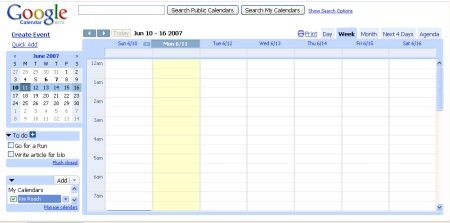
As you may have heard, Google Calendar has just recently launched their Google Calendar gallery, which allows many different organizations and individuals to share their calendars publicly.
With the new Google Calendar gallery, users can access any of these calendars through an easy-to-browse gallery.
This way, you can find all sorts of interesting events to add to your own calendar. Simply browse through the gallery and click on “Add to Calendar” when you find something interesting.
You can quickly spice up your life with the wide variety of schedules available in the Google Calendar gallery.
Here are just a few of the interesting calendars you can check out within the gallery:
Disney - Plan your family vacation around special events that are occuring at Disneyland every month.
NBA - Keep up with your favorite basketball team.
Netflix - Find out exactly when your favorite new movies are available on DVD.
Wcities - Find out about interesting events happening in cities across North America.
Barack Obama - follow Barack Obama as he travels the country on his campaign route.
Holidays - Add all U.S. Holidays to your calendar. You can also add Australian, Brazilian, Canadian, Christian, Danish, German, Greek, Italian, New Zealand, Norwegian, Phillipines, Russian, and Spanish holidays to your calendar.
However, that’s not all you can do with Google Calendar.
Google Calendar has a wide variety of features that you may not know about.
For example, you can now access your Google Calendar from your mobile phone. Just visit
http://mobile.google.com/calendar/ with your phone’s web browser and log in.
One of the most useful features are the reminders you can receive by email or mobile text-message from all of your personal calendars. Google Calendar can notify you of any event that you need to remember. You no longer have to worry about missing a meeting, an appointment, interview, or get-together.
To set up your reminders, simply click on the event. Next, click on options and click the “add reminder” link.
If you’d like, you can even print out your Google calendar and stick it on your refrigerator. Simply click on the link that says “Print” at the top of the calendar. It’s to the left of the tabs on the right-hand side that allow you to choose the calendar view from “Day”, “Week”, “Month”, “Next 4 Days”, and “Agenda”. With a printed version of your calendar, you can keep your schedule anywhere you need it.
Want a miniature copy of your Google Calendar on your computer’s desktop at all times? You can do so with the
Google’s desktop gadget.
The Google Calendar gadget allows you to easily add, view and share events without ever leaving your desktop. You no longer have to worry about logging on to the Internet and going to the Google Calendar site to set up your events, which is excellent for all productivity junkies trying to save a bit of time.
You can also add your calendar to your Google Personalized homepage. Click here to add this gadget to iGoogle.
If your looking to customize your Google calendar, you can do so with a variety of Greasemonkey scripts.
One of my favorites is the To Do list. This greasemonkey script allows you to prioritize your to dos, includes a dockable sidebar, settings, and colored elements.
Check it out at http://userscripts.org/scripts/show/9179.
For even more Google Calendar fun, check out the following links:
Rock Your Google Calendar in 18 Ways
Use Google Calendar to Remind Yourself to Get a Life
How to Make Your Google Calendar Your PC’s Desktop Wallpaper